
Cloud File Storage Fundamentals
Understand the difference between local storage and cloud backup. This guide covers Google Drive basics and why cloud storage matters for your documents.
Your computer's hard drive can fail. It happens without warning. But if you're storing everything locally — all your photos, documents, spreadsheets — you're taking a real risk. Cloud storage changes that equation. Instead of keeping files only on your machine, you're backing them up to secure servers that you can access from anywhere.
Here's the thing: you probably already use cloud storage without realizing it. When you email a document to yourself, when you save something in your Google account, you're trusting the cloud. This guide walks you through the basics so you understand what's actually happening and why it matters.
Local Storage vs. Cloud: What's the Real Difference?
Local storage is straightforward. You save a file to your computer's hard drive. It's there, on your machine, nowhere else. You can access it instantly because it's physically right there.
But here's where local storage gets risky. Your hard drive is mechanical equipment. It can crash. Spill water on your laptop, and everything's gone. Drop your computer, and you might lose years of documents. It's not a question of if hardware fails — it's when.
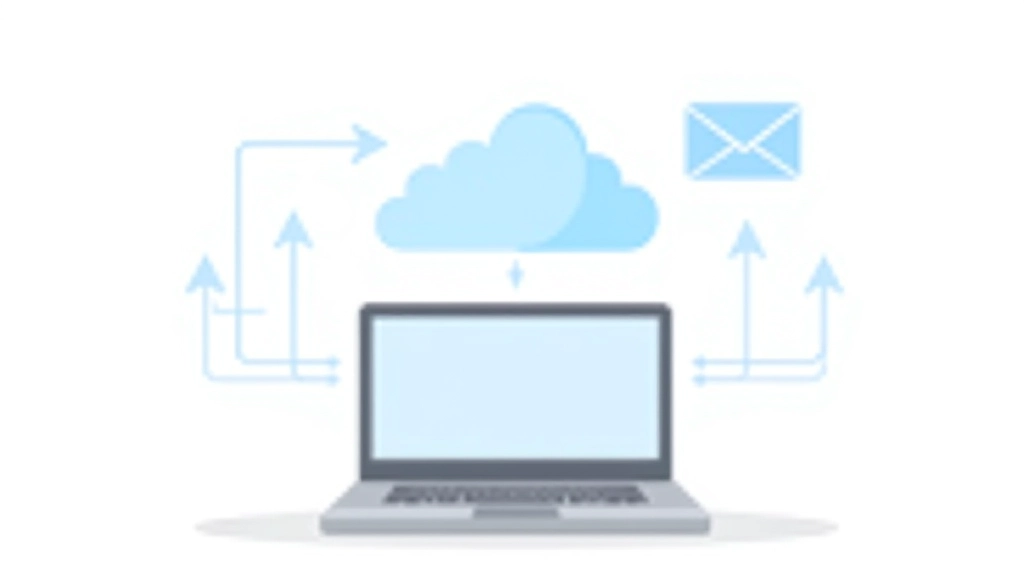
Cloud storage works differently. When you upload a file to Google Drive or another cloud service, it's copied to servers managed by that company. Those servers have backups of their own backups. They're in climate-controlled data centers with redundancy built in. If one server fails, your file still exists on others.
The Key Difference
Local storage = fast access, zero redundancy. Cloud storage = slower access, multiple backups. Most people benefit from using both.
Important Note
Cloud storage isn't a replacement for proper backups. While cloud services provide excellent redundancy, you shouldn't rely on a single cloud provider for critical files. The best approach is the 3-2-1 rule: three copies of your data, on two different media types, with one copy offsite. Cloud storage handles the "offsite" part beautifully.

Google Drive Basics: Getting Started
Google Drive is free cloud storage that comes with any Google account. You get 15 GB for free, which is enough for thousands of documents. Photos and videos take up more space, but for text files, spreadsheets, and presentations, 15 GB goes surprisingly far.
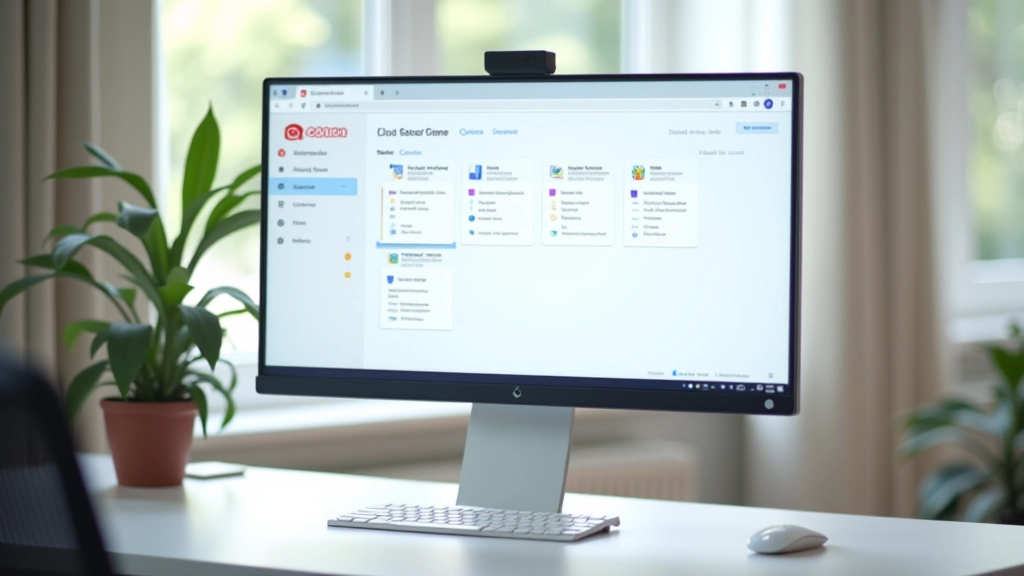
Setting up is simple. If you have Gmail, you already have Google Drive access. Go to drive.google.com and you're in. You'll see a clean interface with folders on the left and files in the main area. It's designed to feel familiar if you've used file managers on your computer.
The real power comes from sharing and collaboration. You can share a document with someone by clicking "Share" and typing their email. They can view it, or you can let them edit it directly. Changes appear in real time. No more emailing versions back and forth.
Core Features
- Real-time collaboration on documents
- Automatic saving as you type
- Version history to recover older versions
- Works offline and syncs when connected
- Access from any device with a browser
Why Cloud Storage Matters for Your Documents
Think about what happens when your computer breaks. You lose access to everything. You can't finish that spreadsheet for work. You can't find your insurance documents. Photos of your kids are gone.
Cloud storage prevents this nightmare. If your computer dies tomorrow, you can borrow a friend's laptop, log into your Google account, and everything's there. You're not starting from zero. Your documents are waiting for you in the cloud.
There's also the accessibility angle. You're at work and realize you need that document from home. Instead of asking someone to email it to you or driving back, you just pull it up in Drive from any browser. Same file, same version, instantly available.
And for families or teams, cloud storage is invaluable. Share a folder with family members. Everyone can access the same documents. Your spouse adds a note to the family budget. You see it immediately. No confusion about which version is current.

Getting the Most From Cloud Storage
Organize With Folders
Create a folder structure that makes sense to you. Don't dump everything in the root directory. Use folders for categories like "Financial," "Medical," "Photos," "Work." You'll find things faster.
Use Sharing Carefully
Before sharing a document, double-check who you're sharing with and what permissions they get. "Can view" is safer than "Can edit" if you just want feedback. Don't accidentally share sensitive documents.
Protect Your Account
Use a strong password for your Google account. Enable two-factor authentication. If someone gets into your Google account, they get your entire Drive. Security here is non-negotiable.
Keep Local Copies Too
Cloud storage is great, but don't rely on it exclusively. Download important documents to your computer as backup. Use Google Drive for sharing and access — use local files as your primary safety net.
Start Simple, Build From There
You don't need to understand every technical detail about how cloud storage works. What matters is this: your files are safer in the cloud than on your computer alone. Cloud storage gives you access to your documents from anywhere. It makes sharing easy. And it protects you if your hardware fails.
Google Drive is a good starting point. It's free, it's reliable, and it integrates with tools you probably already use. Upload a few documents. Create a folder structure. Share something with someone else. You'll get comfortable with it quickly.
The beauty of cloud storage is that it works in the background. Once you set it up, you don't have to think about it. Your files are backed up. You can access them from your phone, your work computer, or a friend's laptop. That's the real value — peace of mind that your important documents are safe and accessible.
Ready to explore cloud storage more? Learn how to organize your Gmail inbox and manage files effectively.
Read Our Gmail Organization Guide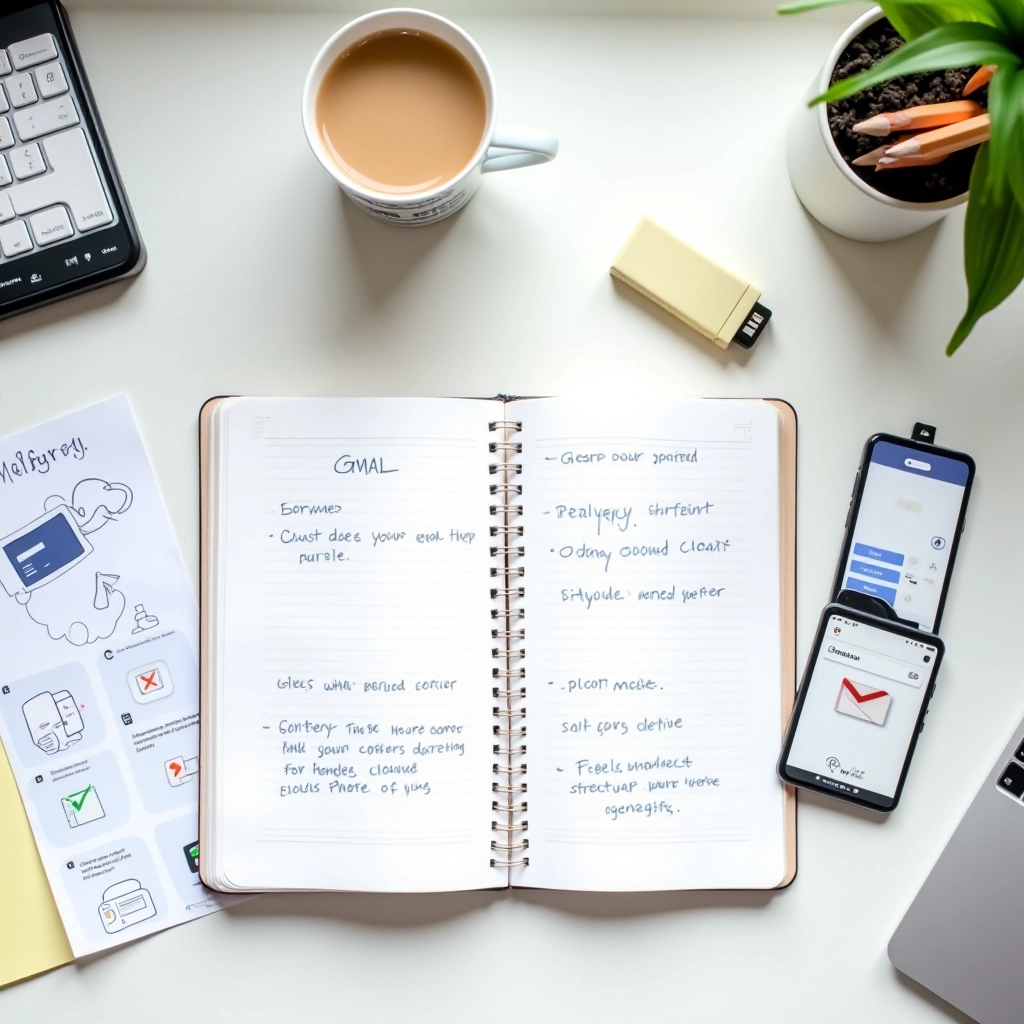
Thendlessjourney Editorial Team
Editorial Team
Written by the thendlessjourney Editorial Team, focused on clear, practical guidance for email and cloud storage essentials.
Related Guides

Getting Started With Gmail Organization
Learn how to set up labels, filters, and folders so your inbox stays manageable and you can find messages instantly.

Managing Email Attachments Effectively
Don't let attachments slow down your inbox. We show you how to handle large files without cluttering your email.
Protecting Your Email and Cloud Account
Strong passwords and two-factor authentication aren't optional. Learn the essential security steps for protecting your accounts.